Frequently Asked Questions
Everything you need to know about Kamero's AI-powered photo sharing platform. Can't find what you're looking for? Schedule a call with our team.
8 questions in Getting Started
Creating a Kamero account is quick and free. Visit login.kamero.ai and click Sign Up. Enter your email address, and we'll send you a verification OTP. Enter the OTP to verify your account, and you're ready to go. You'll automatically receive one free trial event with 45 days validity to explore all features.
Every new Kamero account receives one free trial event with 45 days of validity. This includes access to all features: AI face recognition, multiple upload methods, QR code sharing, guest downloads, and more. It's the perfect way to test Kamero before committing to a subscription or purchasing event packs.
Kamero offers two flexible purchasing options: 1. Subscription Plans - Monthly or annual subscriptions with upload limits and photo storage, ideal for photographers with regular events. 2. Event Packs - One-time purchase packs for individual events, perfect for occasional events or trying Kamero without commitment.
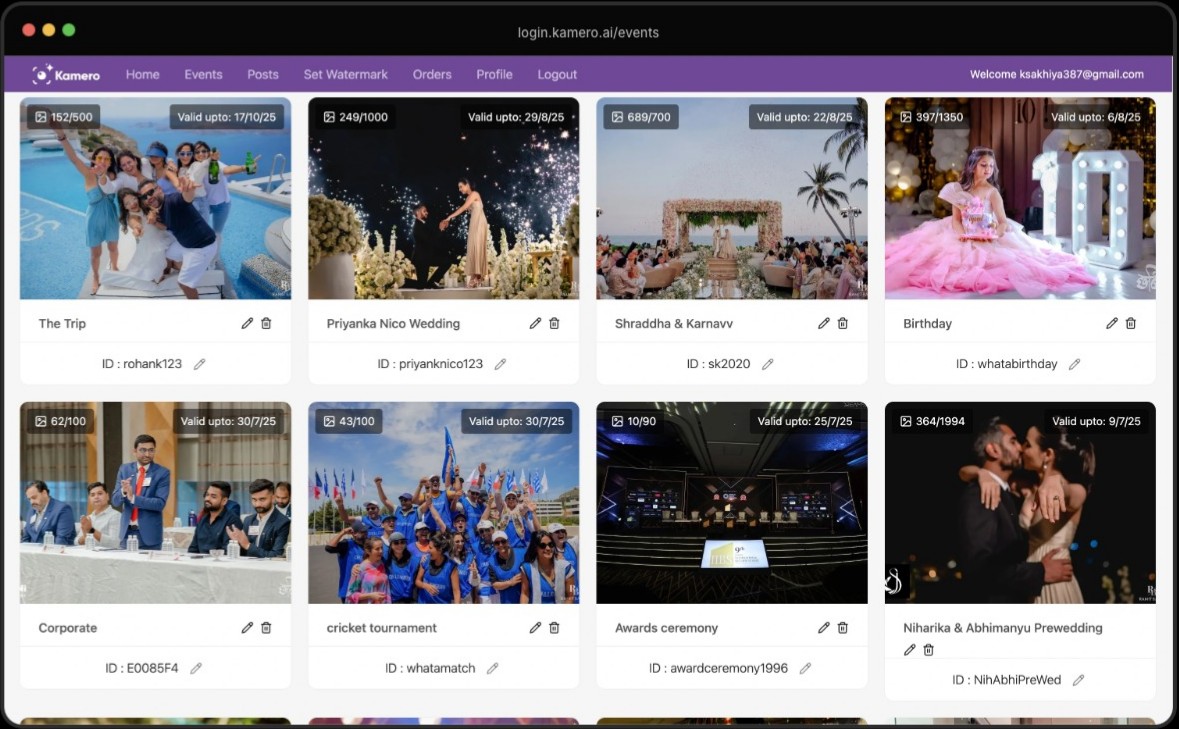
After signing up, go to login.kamero.ai/events/create. Choose whether to use your subscription or a purchased pack. Enter your event name, date, and optional details. You can create multiple albums within the event. Enable AI Face Recognition if you want guests to find their photos via selfie.
Absolutely! Every new account gets one free trial event with 45 days validity. This gives you full access to all Kamero features including AI face recognition, Kam-Sync live upload, QR code sharing, and high-speed downloads.
Kamero is designed for all event types: Weddings, Corporate events, Schools and colleges, Universities, Sports events, Live concerts, Exhibitions, Trade shows, Birthday parties, Religious ceremonies, and any gathering where photo sharing matters.
Yes! Kamero offers high-performance native mobile apps for both iOS and Android. Guests can download the app to access event galleries, take selfies for face recognition, download photos, and receive push notifications when new photos are added.
Kamero is purpose-built for event photography with features traditional cloud storage lacks: AI face recognition for instant photo discovery, 10x faster download speeds, on-demand ZIP generation for bulk downloads, dynamic watermarking, branded QR codes, guest registration, and Kam-Sync live camera uploads.
Kamero Portfolio Website gives photographers and studios a client-facing website for their brand, services, selected work, event galleries, and enquiries. It connects your portfolio presence with the Kamero event workflow instead of forcing you to manage a separate collection of disconnected links.
Yes. Custom domain support lets you connect a domain your business owns, such as yourstudioname.com, so clients visit a branded web address associated with your photography business.
The portfolio experience is designed to keep your studio and photography brand in front. Your clients see your identity and your work, while Kamero powers the website and gallery experience behind the scenes.
Yes. You can feature event galleries as part of your portfolio so prospective clients can explore complete weddings, corporate events, concerts, and other photography stories from one branded destination.
Yes. Kamero portfolio layouts are responsive and designed to provide a polished experience across mobile phones, tablets, laptops, and desktop screens.
Yes. The website can present your contact details and enquiry path so visitors can reach your studio after viewing your portfolio and event work.
No separate website builder is required for the Kamero portfolio experience. You create and manage the portfolio content through Kamero and connect your own domain when you are ready to publish.
Start with a clear studio introduction, your strongest work organised by service or event type, complete event stories, information about your approach, contact details, and a visible enquiry action. Keep the selection focused on the clients and assignments you want to attract.
Yes. Once connected, your custom domain becomes a memorable destination you can use in social profiles, email signatures, proposals, QR codes, advertising, and direct client communication.
Kamero's AI Face Recognition automatically detects and indexes every face in your event photos during upload. When guests want to find their photos, they simply take a selfie through the Kamero app or web gallery. Our AI matches their face against all indexed photos in under 3 seconds.
Kamero uses state-of-the-art AI that matches faces in under 3 seconds with high accuracy. The system works reliably across different lighting conditions, angles, group photos, and even partial face visibility. Our advanced indexing technology enables lightning-fast similarity searches.
Face-based Privacy restricts photo access based on face recognition. When enabled, guests can ONLY see photos where they appear - they cannot browse other guests' photos. Perfect for high-profile events, corporate gatherings, or any situation where privacy is paramount.
Yes! Kamero supports multiple access methods: Selfie Match, Event PIN for full album access, QR Code scanning, and Direct Link sharing via WhatsApp, email, or social media. You configure which methods are available per event.
Never. Kamero implements event-scoped face recognition for maximum privacy. Face vectors are isolated to each event and cannot be matched across different events. This privacy-by-design approach ensures face data from one event is never used to identify people in another event.
Face recognition can be enabled when creating an event or anytime from Event Settings. Go to your event dashboard, click Settings, and toggle Enable Face Recognition. Photos are automatically indexed as they're uploaded.
If face recognition misses a photo, it could be due to face angle, lighting, or obstruction. Try taking a clearer selfie with good lighting. Event admins can also manually refresh the face index.
Face recognition works best with unobstructed faces. While our AI can handle partial obstructions, accuracy may decrease with masks, sunglasses, or heavy makeup. For best results, ensure the selfie shows your full face clearly.
Yes. Your selfie image is stored on our servers, against your account. That is what lets you reuse one selfie across events, name it, set a default, and see it in your profile. We also derive a face vector (a mathematical representation) from it, which is what actually performs the matching. You can delete a selfie at any time from Profile → Face Recognition Selfies, or from the selfie list in My Photos. That erases the stored photo and its thumbnail from our servers and object storage, and it cannot be recovered or viewed again; a numeric face signature derived from it is retained so photo links you have already shared or purchased keep working.
No. Data is indexed against randomized UUIDs. Kamero never links facial data to a guest's name, email, phone number, or any other identifying information. Nothing is tied to a real identity. The process is fully anonymous by design.
Face data is deleted when the photo, album or event it belongs to is deleted, or after the event expires — whichever is earliest. Deletion after expiry runs as a scheduled clean-up a short period after expiry, not at the expiry moment. Deleting your own selfie erases the stored photo and its thumbnail from our servers and object storage; the photo cannot be recovered or viewed again, and the selfie can no longer be used for new searches. The numeric face signature already derived from it is retained so that photo links you have already shared or purchased keep working. Email dpo@kamero.ai if you also want that signature erased.
No. The entire matching process is fully automated using AI. There is no manual human review of guest photos or selfies at any stage. The AI handles face detection, indexing, matching, and delivery autonomously.
Kamero uses proprietary AI face recognition technology. The matching process is fully automated and anonymized, handling varied real-world conditions including different lighting, angles, and group shots across 200M+ processed faces.
Yes. Kamero can add an additional verification layer, such as an event-specific passcode, that guests must enter before running a face search. This feature is available with the white-label app package for organizations requiring extra security.
Yes. Kamero's face recognition is privacy-first by design: no identity linking, anonymous face vectors only, automatic deletion after event expiry, event-scoped data isolation, no third-party sharing, and full user control over data deletion. The system is designed to comply with GDPR requirements.
Kam-Sync is Kamero's revolutionary live upload feature that connects your professional camera directly to the cloud. As you capture photos, they automatically sync to your Kamero event in real-time. This is game-changing for live events, concerts, sports, and weddings.
Go to login.kamero.ai/kam-sync, create FTP credentials, select target event and album, enter credentials in your camera's network settings, connect to WiFi or hotspot, and start shooting. Photos sync automatically. See login.kamero.ai/how-kam-sync-works for detailed guides.
Kam-Sync works with any camera that supports FTP transfer: Canon (EOS R series, 5D, 6D, 1DX), Nikon (Z series, D850, D6), Sony (Alpha series with FTP), and Fujifilm (GFX, X-T series). Most professional cameras from 2018 onwards support this.
Yes! Kamero supports up to 10 Kam-Sync accounts for multi-camera setups. Each camera can have its own credentials pointing to the same or different albums. Perfect for large events with multiple photographers.
Kam-Sync is designed for reliability. If connection drops, photos queue on your camera and automatically resume uploading when connection restores. Your camera's memory card serves as primary storage, so no photos are ever lost.
You choose! Standard Upload provides optimized versions for fast delivery (1 credit per photo). Original Upload preserves full-resolution originals (2 credits per photo). For live events with slow networks, we recommend Standard Upload.
Upload speed depends on network and file size. On good WiFi or 5G, a 20MB RAW file typically uploads in 5-15 seconds. JPEGs upload even faster. Use a dedicated mobile hotspot for optimal performance.
Yes! From your Kamero dashboard, you can change which album receives photos without reconfiguring your camera. Perfect for switching between ceremony, reception, and party albums during a wedding.
Kamero offers multiple ways to upload photos. Use the Web Portal at login.kamero.ai for simple drag-and-drop uploads from your browser. Download our Desktop App for Windows or Mac (kamero.ai/desktop-app) for faster, high-volume uploads with background processing. Use Kam-Sync to connect your professional camera directly to the cloud for real-time uploads. Enable Guest Uploads to let event attendees contribute their own photos. Use Legacy Upload mode when you're on a slow network connection.
Legacy Upload is optimized for challenging network conditions. It applies intelligent lossless compression before upload, reducing file sizes while maintaining quality. This ensures photos upload even on slow 3G connections.
Standard Upload optimizes your photos for fast web and mobile delivery while maintaining great quality. It uses 1 upload credit per photo. Original Upload stores both the full-resolution original file AND an optimized version, using 2 credits per photo. Choose Original Upload when your clients need to download the exact original files, such as for printing or professional editing.
Individual photos can be up to 100MB each. We support JPEG, PNG, HEIC, and most RAW formats. Our high-performance backend handles events with 50,000+ photos totaling over 500GB with ease.
Kamero includes intelligent deduplication. We check for exact duplicates based on file hash. Duplicate files are automatically skipped, saving your upload credits and storage.
Yes! Enable Guest Uploads in Event Settings. Once enabled, guests can go to the Guest Upload album via the web link or Kamero app and upload their photos directly. Guest photos appear in a dedicated section and can be moderated before being visible to all attendees.
Yes. When you enable guest uploads on an event, the guest allowance for that event is set aside from your account's upload credits at the moment you switch it on, rather than gradually as guests upload. We reserve it in advance so the capacity is guaranteed to be available when your guests arrive, instead of guest uploads failing partway through an event because the credits were used elsewhere. If you turn guest uploads off, the unused reservation is released back to your account.
Photos are stored until your event validity expires (for event packs) or until your subscription expires (for subscription-based events). After expiry we keep your data for a grace period of 7 calendar days, and renewing within those 7 days restores everything exactly as it was. After the 7-day grace period your data becomes eligible for permanent deletion by our automated cleanup. Cleanup does not necessarily run the moment the grace period ends, so renewal may still recover your events for some time afterwards, but we cannot guarantee that and deleted data cannot be restored. Please treat 7 days from expiry as your real deadline.
Kamero supports: JPEG/JPG, PNG, HEIC/HEIF (iPhone), WebP, and most RAW formats (CR2, CR3, NEF, ARW, RAF). RAW files are converted to high-quality JPEG for delivery while originals are preserved with Original Upload.
The Desktop App (Kamero Admin), available for Windows and Mac at kamero.ai/desktop-app, has everything in the web dashboard plus five desktop-only features: one-shot upload of a folder with subfolders (each subfolder becomes an album), background upload without a browser tab, an upload queue that resumes automatically after you close and reopen the app, up to ~10x faster uploads than the browser (Kamero's internal measure, not an independent benchmark), and bulk download of all event photos into album folders. Failed uploads are retried automatically. We highly recommend it for anyone uploading more than a few hundred photos.
Guests have multiple ways to download photos depending on your event settings. They can tap on any photo and click the download button to save individual photos. If face recognition is enabled, guests can use the 'My Photos' feature to download all photos they appear in at once. For bulk downloads, guests can download entire albums as ZIP files. The available options depend on what you've enabled in your event settings.
As an event admin, you can customize download permissions for your guests. 'Allow All' lets guests download any photo from the event. 'My Photos Only' restricts guests to downloading only photos where they appear (requires face recognition). 'Disable Downloads' makes the gallery view-only. You can also toggle 'Anonymous Downloads' to allow or require sign-in, enable 'Original Quality' downloads for full-resolution files, and apply watermarks automatically to downloaded photos.
Kamero is 10x faster than traditional cloud storage. Our architecture generates ZIP files on-demand in minutes, even for 100GB+ events. We use high-performance libraries and multi-layer caching for maximum speed.
The Download PIN is a secret code that grants special access to your event. When you enable Face-based Privacy (where guests can only see their own photos), the PIN allows trusted people like the event organizer, bride and groom, or VIP clients to bypass this restriction and access all photos in the event. Only share the PIN with people you trust to see everything.
Yes! For large downloads, Kamero can email download links directly to recipients. Enter the email in Event Settings > Download. Perfect for delivering full event archives to clients.
Kamero provides multiple ways to share your event with guests. You can generate branded QR codes to print and display at your venue. Share the web link directly via WhatsApp, email, SMS, or social media. Use the app deep link that opens directly in the Kamero mobile app for guests who have it installed. You can also create a custom event ID for memorable URLs like kamero.ai/adiwedding that are easy to remember and share.
By default, guests download photos in 2K quality which is optimized for web sharing and social media. If you uploaded photos using 'Original Upload' and enabled 'Original Quality' downloads in your event settings, guests can download the full-resolution original files. As an admin, you can choose to restrict downloads to 2K only if you want to reserve original quality for yourself or paying clients.
This depends on your event settings. If you enable 'Allow Anonymous Downloads', guests can download photos without creating an account or signing in. If you disable this option, guests must sign in with their email or phone number before downloading. Requiring sign-in helps you track who downloaded photos and build a contact list of your event attendees.
Kamero gives you complete control over your event. You can enable or disable AI Face Recognition for selfie-based photo finding. Turn on Face-based Privacy so guests only see their own photos. Enable Guest Registration to collect contact details. Allow Guest Uploads so attendees can contribute their photos. Configure download permissions and quality settings. Add custom watermarks to protect your work. Set an Event PIN for secure access. Enable the Enquiry button so potential clients can contact you directly from your gallery.
Yes! All details are editable anytime: Event name and custom ID, date, privacy and download settings, face recognition toggle, and album organization. Changes take effect immediately.
Guest Registration requires visitors to provide their name, email, and mobile number before they can view or download photos from your event. This is useful for building a contact list of attendees, tracking who viewed your gallery, following up with potential clients after the event, and adding an extra layer of access control to your event.
Yes! Toggle Disable Event to temporarily hide your event. The event and photos remain intact but aren't accessible. Toggle back on anytime to restore access.
When you enable 'Allow Enquiry', a contact button appears on your event gallery. Visitors who like your work can tap this button to send you a message directly through Kamero, asking about your photography services, pricing, or availability. This is a great way to generate leads and get new clients from people who have already seen your work.
Yes! Add co-hosts to share management responsibilities. Co-hosts can upload photos, manage albums, and adjust settings. Perfect for team photography.
Create multiple albums within each event: By event phase (Ceremony, Reception), by location (Venue, Outdoor), or by photographer. Photos can be sorted by capture time or filename.
Kamero offers flexible watermarking to protect your photos. You can upload your own custom watermark image (like your logo). Use dual-logo support to show both your logo and a sponsor's logo. Adjust the position (corner, center, tiled) and transparency level. Watermarks are applied automatically when photos are downloaded. You can even set different watermarks for preview images versus downloaded files.
Selling photos on Kamero is simple. Go to login.kamero.ai/sell-photos and create a new sale event. Upload your photos - Kamero automatically adds watermarks to preview images so buyers can see but not steal your work. Set your prices for individual photos and bundles. Share the sale link with potential buyers. Track all orders in your dashboard. Buyers pay you directly, so every sale lands in your own account.
Buyers pay you directly. At checkout they see the payment details you have set up, such as a payment link or QR code, your contact details and an order reference. When you confirm the payment in your dashboard, their photos unlock. Kamero never holds the money.
When you upload to a sale event, Kamero automatically applies preview watermarks. Buyers see watermarked previews but receive clean photos after purchase. Customize appearance in Sale Watermark settings.
This is a powerful feature for events like marathons, sports competitions, or school functions. Buyers take a selfie, and Kamero's AI instantly finds all photos where they appear. Instead of buying photos one by one, they can purchase their entire collection in one click at a discounted bundle price that you set. This makes it easy for buyers and increases your sales.
Visit login.kamero.ai/sell-photos/dashboard to see all your sales data. You can view total sales and revenue, complete order history with buyer details, and which orders are still awaiting the buyer's payment. You can also download detailed reports for your accounting and tax purposes.
No. Due to legal requirements, we are not authorised to collect payments on behalf of sellers, and we are not currently able to send payouts to international sellers. Because of this, Sell Photos is a subscription. Kamero only charges for the subscription. Buyers pay you directly, so all photo-sale money goes straight into your bank account or your chosen payment method.
Three yearly plans, priced by the number of orders: Starter, 200 orders a year for $100. Growth, 600 orders a year for $250. Pro, 1,500 orders a year for $500. An order counts when a buyer checks out and receives a payment reference; if the order is cancelled or closes unpaid, you get it back.
Buyers have flexible purchasing options. They can buy individual photos one at a time, purchase the 'All My Photos' bundle to get all photos they appear in at a discounted rate, or buy custom packages you create. This flexibility lets buyers choose what works for their budget while maximizing your revenue potential.
Kamero uses enterprise-grade security to protect your photos. All data is encrypted with TLS 1.3 during transfer and AES-256 encryption when stored. Photo URLs use anonymized unique IDs so they can't be guessed. We use cloud-native secrets management and conduct regular security audits to ensure your photos remain safe.
You have full control over who can access your event photos. For public events, anyone with the event link, QR code, or event code can view the gallery. You can add extra security by enabling PIN protection (guests need a secret code to enter), Face-based Privacy (guests can only see photos they appear in), or Guest Registration (guests must provide their contact details before viewing). You can also completely disable the event to temporarily hide it from everyone.
Yes, face recognition data is handled with strict security. Face vectors (the mathematical representation of faces) are encrypted when stored. They are completely isolated to each event and can never be matched across different events. All processing happens in secure cloud environments. We never sell or share face data with third parties.
Yes, you can delete any event from your dashboard. When you delete an event, all associated data is permanently removed including all photos, face recognition data, guest registration information, and download history. Please note that deletion is irreversible - once deleted, the data cannot be recovered.
Kamero implements data minimization, purpose limitation, and user consent principles. For specific compliance questions (GDPR, CCPA), contact our support team.
Kamero maintains detailed logs for security and accountability. We record photo uploads and deletions, changes to event settings, when access is granted or revoked, and all download requests. Each log entry includes timestamps, IP addresses, and user details so you can track exactly what happened and when.
Guests always have control over their privacy. They can simply choose not to take a selfie and access photos through other methods like the event PIN or direct link. If a guest has already used face recognition, they can request removal of their face data from the event. Face recognition is always optional - guests are never forced to use it.
Kamero never stores your credit card or payment details on our servers. International plan billing goes through PayPal, and Indian plan billing in INR goes through Razorpay. Photo sales paid in INR in India go through PhonePe. All three are PCI-DSS compliant, so your card details go directly to them and are never accessible to Kamero. Direct-pay photo sales never pass through Kamero at all: buyers pay the photographer straight into their own bank account or chosen payment method.
Kamero is built on a high-performance microservices architecture. Low-level languages power our backend services, making them lightning-fast and highly efficient. Our infrastructure is designed for massive scale with auto-scaling capabilities and global content delivery.
Our architecture auto-scales from zero to thousands of concurrent uploads seamlessly. We've successfully handled events with 100,000+ photos, 100GB+ total sizes, thousands of simultaneous guests, and real-time Kam-Sync from 10+ cameras.
Kamero is purpose-built for photo delivery with on-demand image resizing, multi-layer caching, optimized bulk download generation, and progressive loading. Our high-performance backend delivers 10x faster downloads than generic cloud storage.
Kamero transforms images in real-time as requested: Device-perfect resizing, modern format conversion, dynamic watermarking, and quality optimization. Transformations happen in milliseconds when requested - no pre-processing delays.
Our global content delivery network caches photos at edge locations worldwide, delivers from the server nearest to the viewer, ensures sub-100ms load times globally, and handles traffic spikes automatically.
Kamero targets 99.9% uptime with distributed architecture (no single point of failure), automatic failover and recovery, continuous health monitoring, and intelligent circuit breakers to prevent cascading failures.
Built for reliability with automatic retries, queuing for failed operations, Kam-Sync photo queuing during disconnection, and the desktop app upload queue that is saved on your computer and resumes when you reopen Kamero Admin. Transient failures are handled gracefully without data loss.
Our in-house image delivery pipeline reads from cloud storage, applies transformations on-the-fly, caches at multiple layers, and delivers optimized images globally. Built with high-performance low-level libraries for maximum efficiency.
Flexible plans: Starter (occasional photographers), Professional (regular event photographers), Business (studios and agencies), and Enterprise (custom plans). Higher tiers offer more uploads and storage.
One-time purchases for individual events. Perfect for occasional events, trying Kamero without subscription, or extra capacity beyond your subscription. Purchase a pack, create your event, upload photos.
Standard Upload: 1 credit per photo (optimized version). Original Upload: 2 credits per photo (original + optimized). Track usage in your dashboard.
Every Kamero subscription is a yearly subscription. Monthly and quarterly are payment options that let you spread the cost - they are not shorter plans, and they do not come with a smaller allowance. All limits are yearly limits and all resets happen yearly, so whether you pay once, four times or twelve times a year, you get the same allowance for the same twelve-month period.
Once every 12 months, on the yearly anniversary of the date your current subscription period started. Your upload allowance is a yearly one, so it does not reset every time you pay. If you are billed monthly or quarterly, each payment keeps your subscription active but does not top your credits back up - a monthly subscriber and a yearly subscriber on the same plan receive the same credits per year and simply pay for them differently. If you need more capacity before your reset date, you can add on extra credits or upgrade your plan.
Two rules apply at all times: (1) within one yearly period, the total you upload cannot exceed your plan limit; and (2) at any moment, the photos you are currently storing cannot exceed your plan limit. Your remaining limit follows whichever rule is tighter. For example, on a 500,000 photo plan: in your first year you can upload 500,000 photos and keep all of them. If you renew and 300,000 photos from last year are still in your account, you can add 200,000 new photos - not 500,000 - because your account can never hold more than 500,000. If you then delete 50,000 of those older photos, your remaining limit becomes 250,000. But deleting photos you uploaded earlier in the current year does not change your remaining limit, because those uploads have already been counted for this year. Note that an original upload counts as 2 against both rules.
It depends on when those photos were uploaded. Photos uploaded during your current yearly period: no. Those uploads have already been counted for the year, so deleting them frees gallery space but does not return upload limit - you would need to add on extra capacity or upgrade your plan. Photos uploaded during an earlier yearly period: yes. Those photos limit you only because you are still storing them, so deleting them returns that capacity straight away. Either way, your remaining limit is shown in your subscription card in real time, so you can always see exactly what a deletion did.
Access is suspended straight away - you and your clients will not be able to open galleries or use sharing links, and uploads stop. Your photos are not deleted at that moment. We keep your events and photos for a grace period of 7 calendar days from your expiry date, and renewing within those 7 days restores everything. After 7 days your data becomes eligible for permanent deletion and we can no longer guarantee it, so please renew within the grace period.
We aim to send renewal reminders, but they are a courtesy on a best-effort basis and cannot be guaranteed. Reminders can fail for reasons outside our control, such as spam or promotions filters, a full mailbox, or an out-of-date email address or phone number on your account. A reminder you did not receive does not extend your grace period. Your renewal date is always shown on your subscription page in the dashboard - please treat that as the authoritative source and track it yourself.
Yes! Change anytime from Account Settings. Upgrades take effect immediately with prorated billing. Downgrades take effect at next billing cycle. Existing events and photos remain accessible. Note that upgrading increases your capacity immediately but does not extend your expiry or renewal date - those stay the same. The same applies to add-on capacity: it tops up your credits without moving your renewal date.
Every new account gets one free trial event with 45 days validity. After the trial, choose a subscription or event pack based on your needs.
Kamero accepts: Credit/Debit cards (Visa, Mastercard, Amex), UPI (India), Net Banking (India), and PayPal (International). Payments processed securely through our partners.
Kamero does not offer refunds on purchases. We strongly encourage all users to explore our platform using the free 45-day trial event that comes with every new account. This allows you to fully test all features, understand our capabilities, and ensure Kamero meets your requirements before making any purchase. We also offer event packs starting at just ₹75, making it easy to start small. Please review our demo videos and documentation before purchasing.
Yes! Annual subscriptions offer significant savings - typically 2 months free compared to monthly billing. Check kamero.ai/pricing for current rates.
First, check your internet connection is stable. Make sure your photos are in a supported format (JPEG, PNG, HEIC, or RAW) and under 100MB each. Verify you have remaining upload credits in your account. Try using the desktop app instead of web upload for better reliability. Clear your browser cache and try again. If the problem persists, contact our support team for help.
First, make sure face recognition is enabled for the event (ask the event admin if unsure). Try taking a clearer selfie with good lighting, facing the camera directly without sunglasses or anything covering your face. The photos may still be processing - wait a few minutes and try again. If you're the event admin, you can refresh the face index from the event settings.
First, verify your camera supports FTP transfer (check your camera manual). Double-check that you've entered the FTP credentials correctly in your camera settings. Make sure your camera is connected to WiFi or a mobile hotspot. Check if any firewall is blocking FTP ports. Try connecting to a different network. Visit login.kamero.ai/how-kam-sync-works for detailed setup guides for your specific camera model.
Make sure you're on a stable, high-speed internet connection. Try downloading during off-peak hours when network traffic is lower. For multiple photos, use the ZIP download option instead of downloading one by one - it's much faster. Clear your browser cache and try again. You can also try using the Kamero mobile app which is optimized for faster downloads.
There could be several reasons. Check that you have the correct event link or code. The event might be PIN-protected - ask the event organizer for the PIN. The event might require registration - look for a sign-up form. The admin may have temporarily disabled the event. If Face-based Privacy is enabled, you'll need to take a selfie to see your photos. Contact the event organizer if you're still having trouble.
First, verify your card details are entered correctly. Check that your account has sufficient balance. If using an international card, make sure international transactions are enabled with your bank. Try a different payment method like UPI, net banking, or PayPal. If your card was declined, contact your bank to find out why. You can also reach out to our support team for assistance.
You can reach us through multiple channels. Email us at support@kamero.ai for detailed queries. Use the in-app chat in your dashboard for quick questions. Schedule a video call with our team at cal.com/kamero/demo for demos or complex issues. Visit kamero.ai/help for our help center with guides and tutorials. We typically respond within 24 hours on business days.
First, make sure you have the latest version of the Kamero app from the App Store or Play Store. Try restarting your device. Clear the app cache from your phone's settings. Make sure your device has enough free storage space. If the problem continues, uninstall and reinstall the app. You can report bugs through the app or contact our support team with details about when the crash happens.
How Kamero Works
Step-by-step guide to using our AI-powered photo sharing platform.
View Sample Events
See real examples of events powered by Kamero.
Still have questions?
We can help with everything from best photo sharing practices to plans and pricing, custom whitelabel apps, product demos, and volume discounts.